

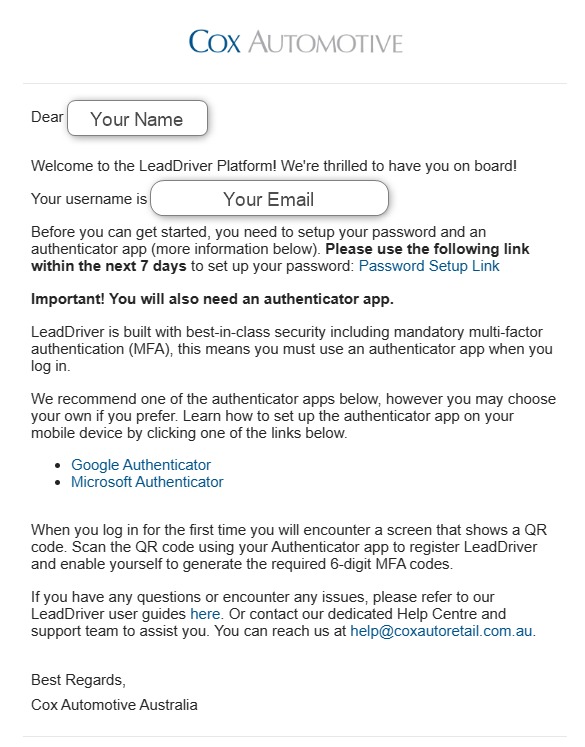
Step 1
You will receive an email from Cox Automotive inviting you to set your Lead Driver password.
Click on the link.
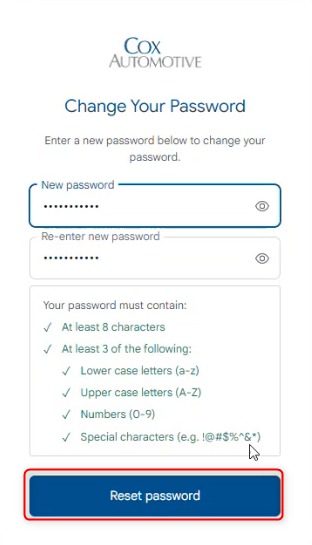
Step 2
You will be redirected to set up your new password.
Enter it twice. Please ensure your password meets the requirements, then click Reset Password.
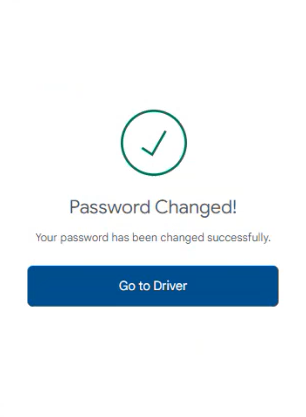
Step 3
Click on – Go to Driver
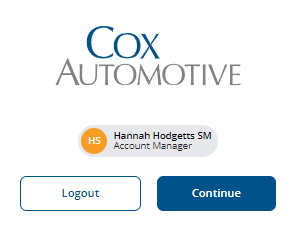
Step 4
Enter your username and password.
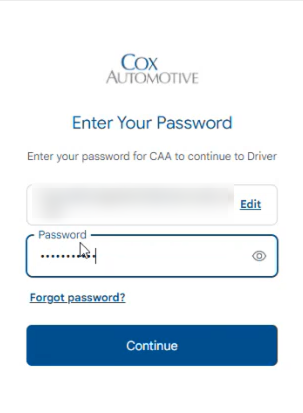
Step 5
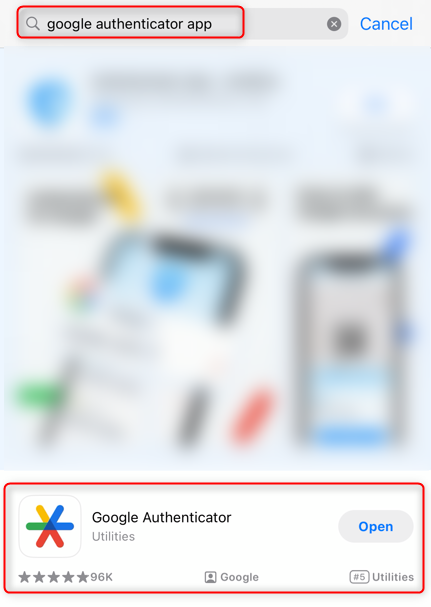
Download your preferred Authenticator App.
Indiqator Solutions recommends using Microsoft or Google Authenticators.
| Android – Microsoft Authenticator | Android – Google Authenticator |
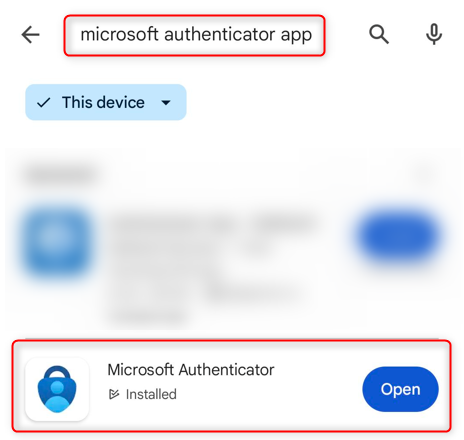 |
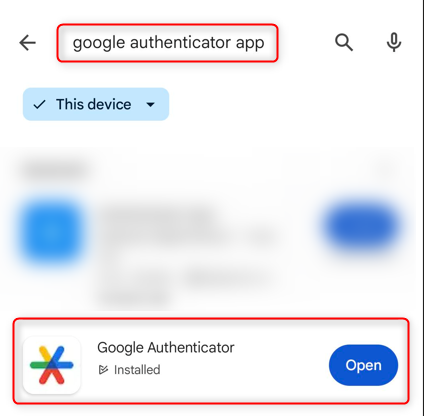 |
| iPhone – Microsoft Authenticator | iPhone – Google Authenticator |
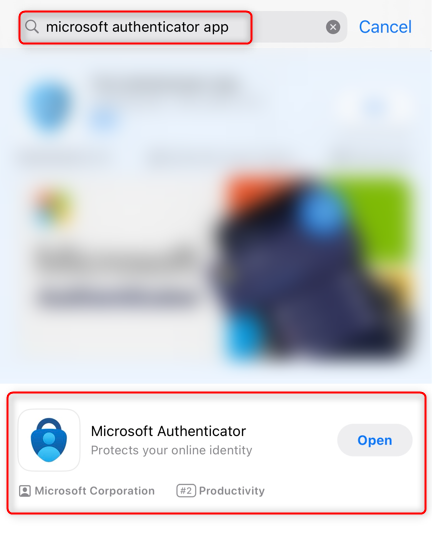 |
 |
Step 6
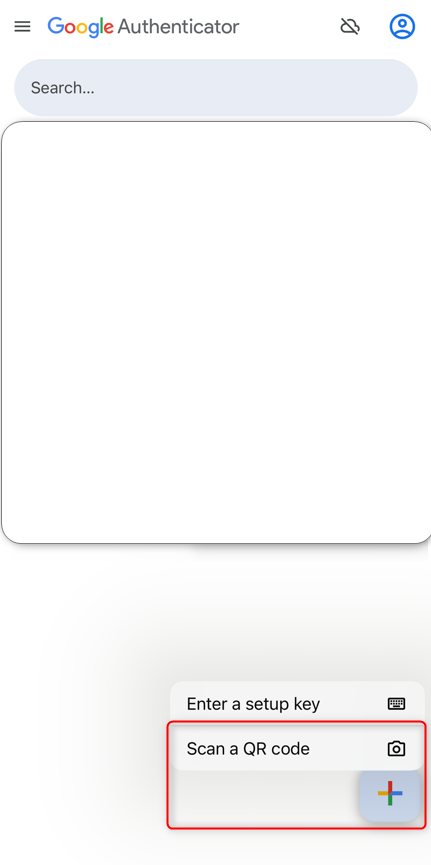
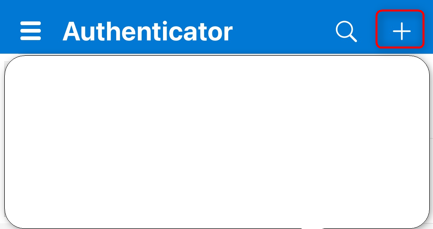
Once you have downloaded your preferred app, scan the QR code on your screen while inside the app.
| Google Authenticator App | Microsoft Authenticator App | |
 |
 |
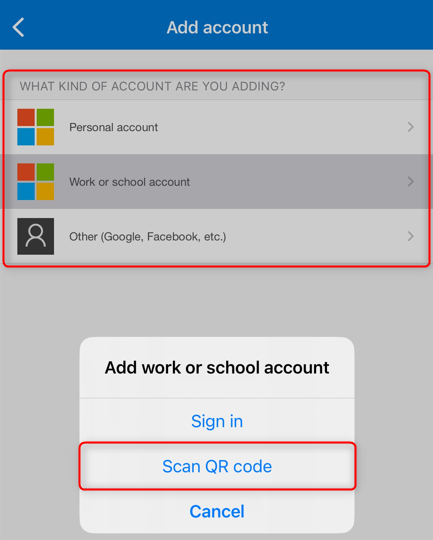 |
Scan your QR code and enter the code your app provides you.
Note: The QR code in the image is blurred on purpose; however, it will not be for you.
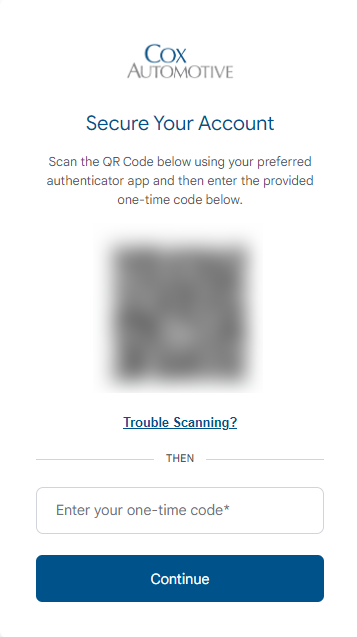
Step 7
Hit ‘Continue’, and you will be taken to the LeadDriver Platform!